

ui.form) — so the same field set can power many flows.
It lives at Studio → Forms (/admin/forms).
→ Forms are consumed by flows. See Building Flows for the Form node.
Forms list
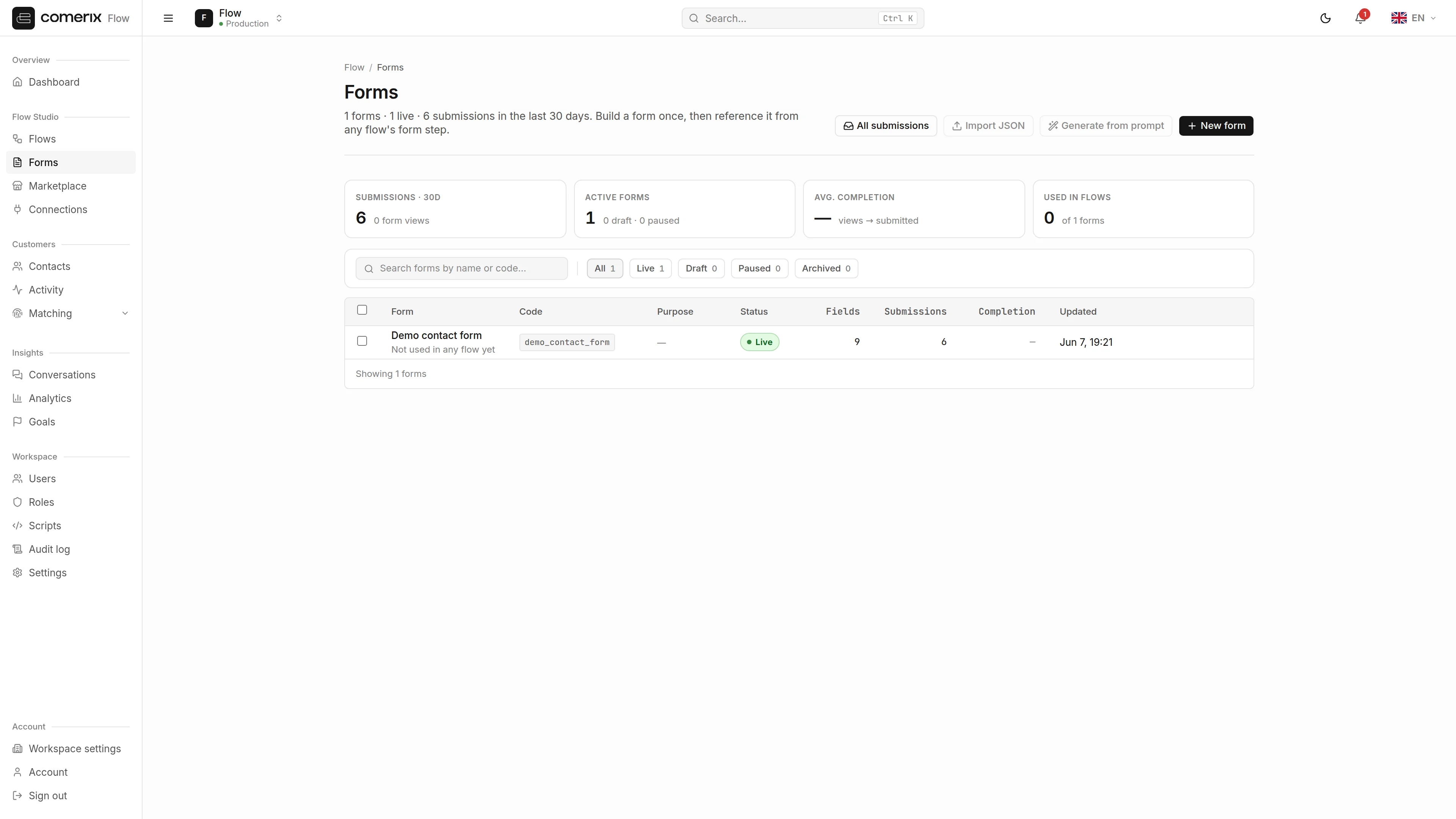
/admin/forms) shows each form’s name, purpose, status (draft / live / paused / archived), and usage counts.
Create a form
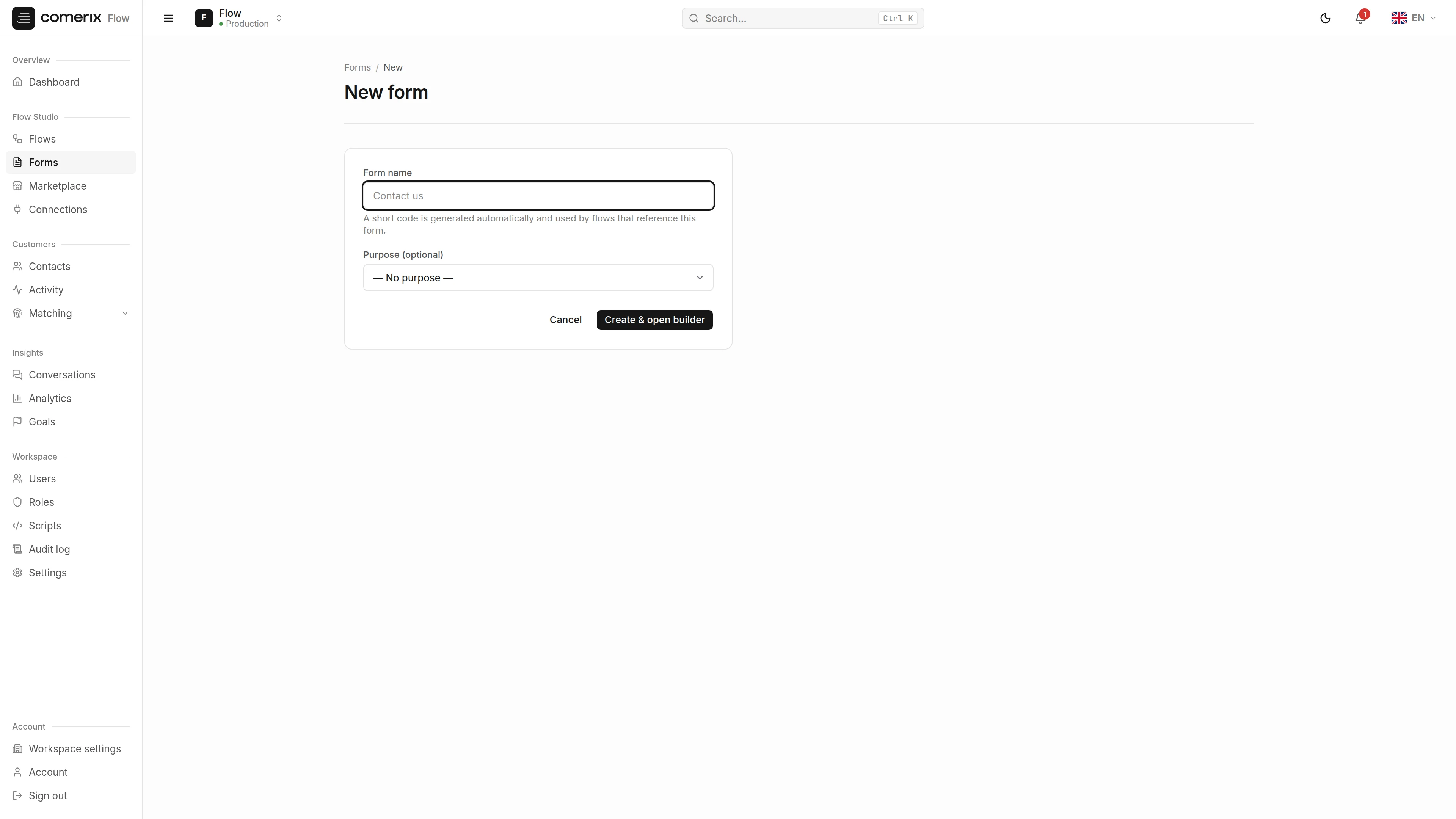
- Click New form (
/admin/forms/new). - Enter a name (required) and an optional purpose.
- Save — this opens the builder.
Edit a form — the three-pane builder
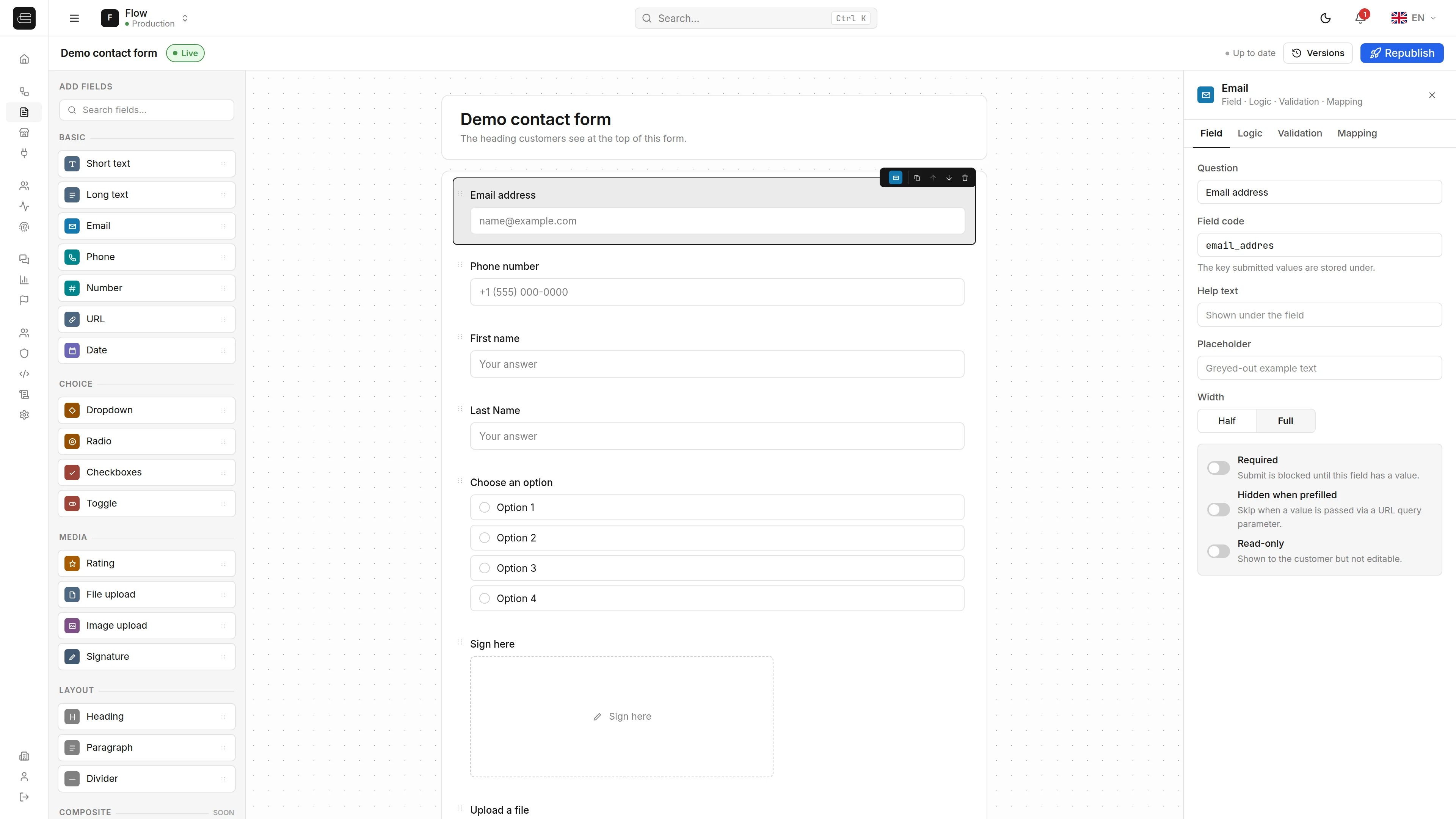
/admin/forms/{id}/edit) loads the builder:
- Field types (left) — click a type to add a field.
- Layout (center) — arrange, reorder, and remove fields.
- Field properties (right) — configure the selected field.
Field types
| Type | Use for |
|---|---|
| text | Short free text |
| Email address | |
| phone | Phone number |
| number | Numeric input |
| textarea | Long free text |
| select | Single choice from a list |
| multi-select | Several choices from a list |
| checkbox | A yes/no toggle |
| radio | One option from a small set |
| date | A calendar date |
| file upload | An uploaded file |
| custom / HTML | Custom markup |
Form analytics
The analytics view (/admin/forms/{id}/analytics) covers the last 30 days:
- Total submissions and completion rate.
- Average fill time.
- A volume timeseries.
- A per-field breakdown of completion and errors.
- A list of recent submissions.
Submissions
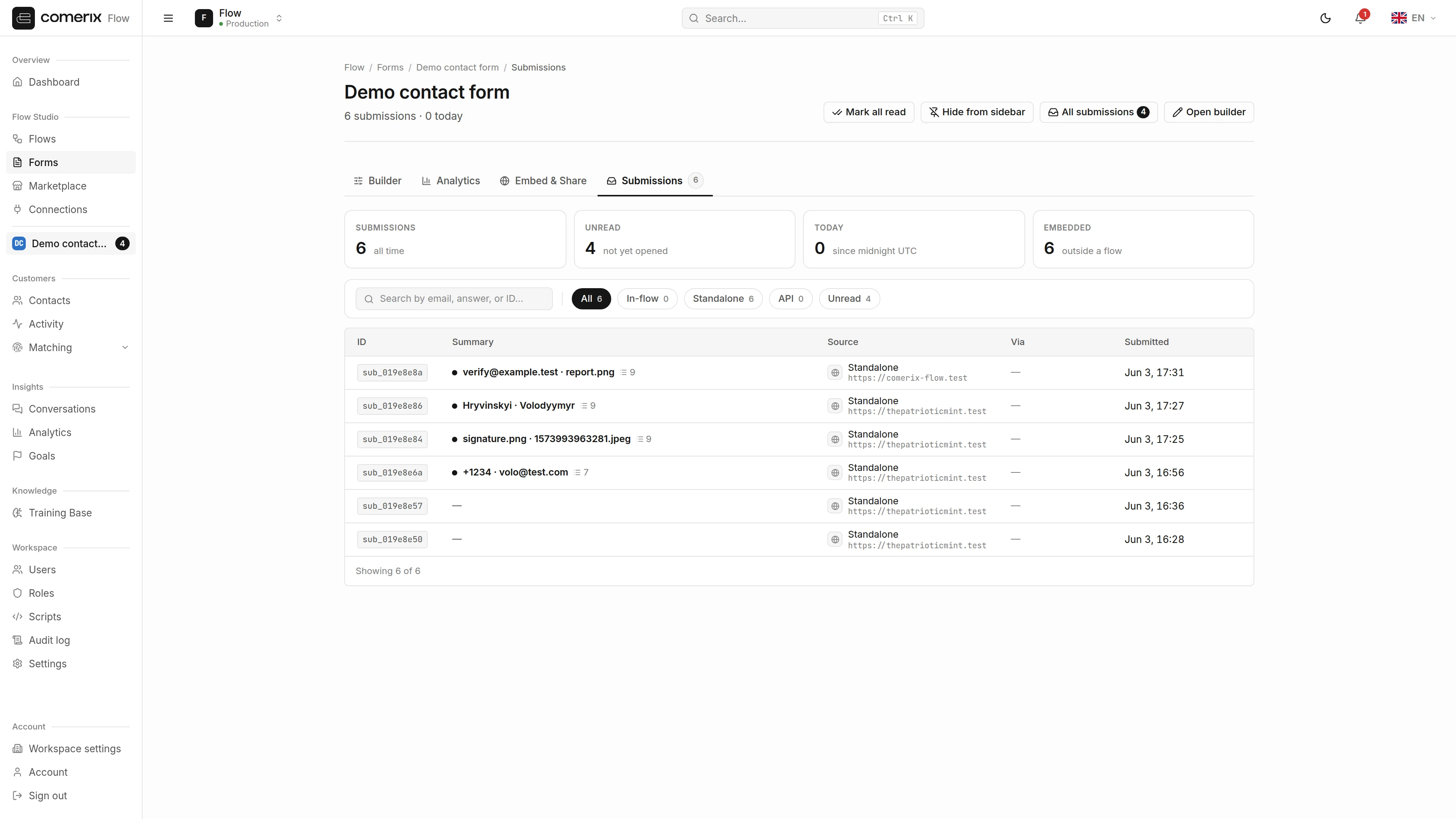
Every response a form collects is recorded as a submission — whether it arrived inside a flow run, from an embedded form, or via the public API.- Per form (
/admin/forms/{id}/submissions) — the Submissions tab lists that form’s responses, with a source filter, full-text search, and a detail drawer that shows each answer. - Workspace inbox (
/admin/forms/submissions) — the same list across every form, with a leading Form column.
Read / unread
Submissions you have not opened yet are unread — shown in bold with a dot, counted in the Unread metric, and selectable with the Unread filter chip. Opening a submission marks it read. Read state is shared across the workspace: once any admin opens a submission, it counts as read for everyone.- Mark all read clears a form’s unread count in one click.
- The detail panel shows each answer plus metadata — the source, the full page URL the form was submitted from, and when it was first opened (Read · …).
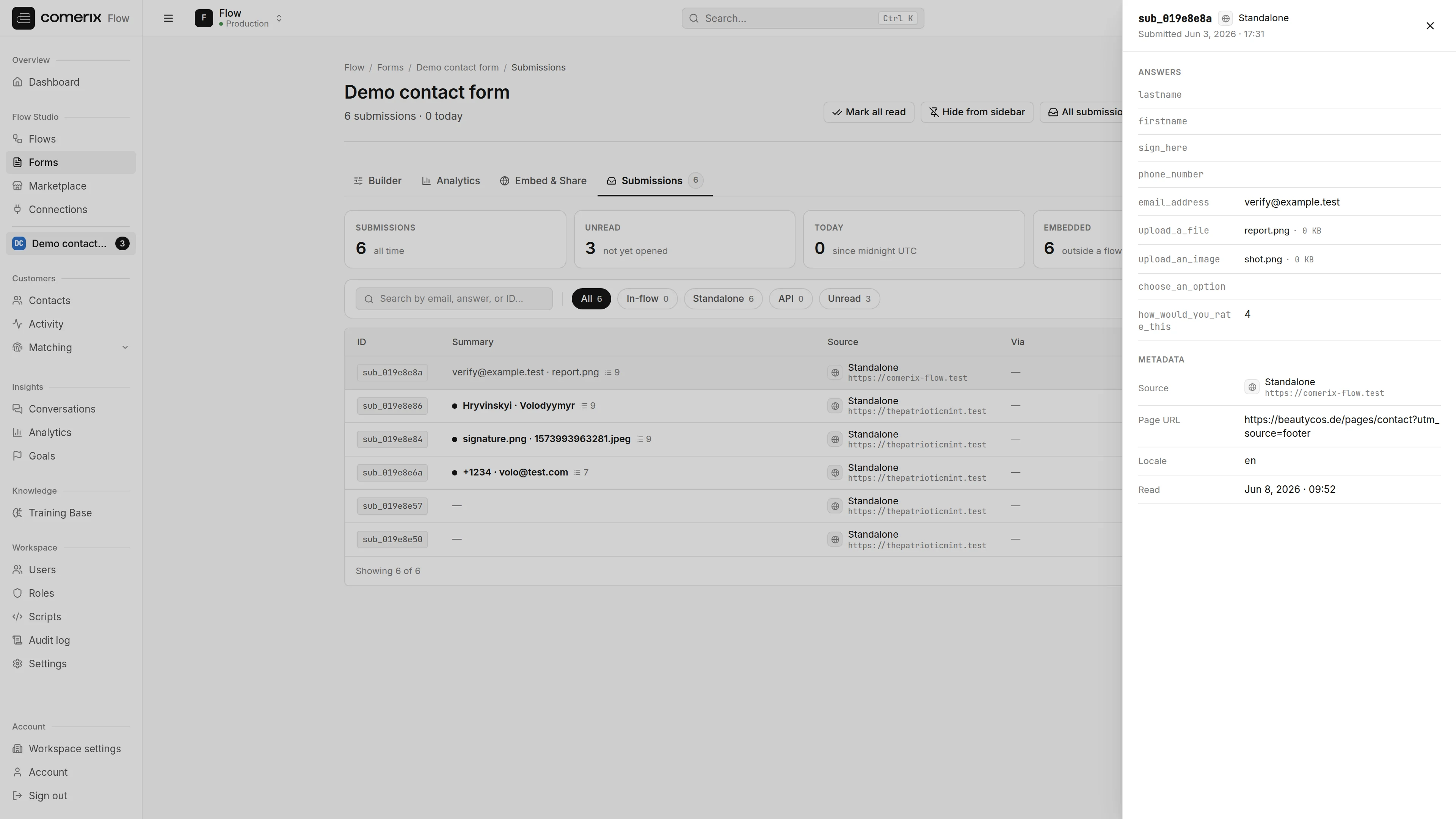
Show submissions in the sidebar
Turn a form into a first-class app row in the left sidebar so its inbox is always one click away:- On the Submissions tab — or in the builder toolbar — click Show in sidebar (📌).
- The form then appears under Studio as a coloured glyph row labelled with its name, carrying a badge of its unread submissions.
- Click Hide from sidebar to remove it. Archived forms never show a row.
Status
The status screen (/admin/forms/{id}/status) moves a form between draft, live, paused, and archived. Publishing a form checkpoints a version.
Versions
Every checkpoint snapshots a version (/admin/forms/{id}/versions). You can restore any version as a new draft.
Permissions
| Action | Permission |
|---|---|
| View forms, builder, analytics, versions | comerix.flows.view |
| Create / autosave / restore | comerix.flows.manage |
| Change status (publish / pause / archive) | comerix.flows.publish |
Part of the Comerix Flow admin guide. See also: Building Flows, Marketplace.