

https://comerix-flow.test).
This page orients a new admin and links to every admin guide. New to the
vocabulary? Read Concepts first, then walk through an
end-to-end example in Scenario.
Signing in
Go to/login and sign in with your password or a passkey. To set up
a passkey, change your password, or review active sessions, see
Your account & security.
Layout
Every page shares the same chrome:- A topbar with the brand, a global search, a language switch, a
notifications bell (
/admin/notifications), a light / dark toggle, and your user / profile menu. - A left sidebar grouped into sections (see the navigation map). The sidebar can be pinned or collapsed to an icon rail.
- A main content area with breadcrumbs, the page title, and header actions.
- A command palette — press Cmd/Ctrl + K to search and jump anywhere without the mouse.
Light & dark theme
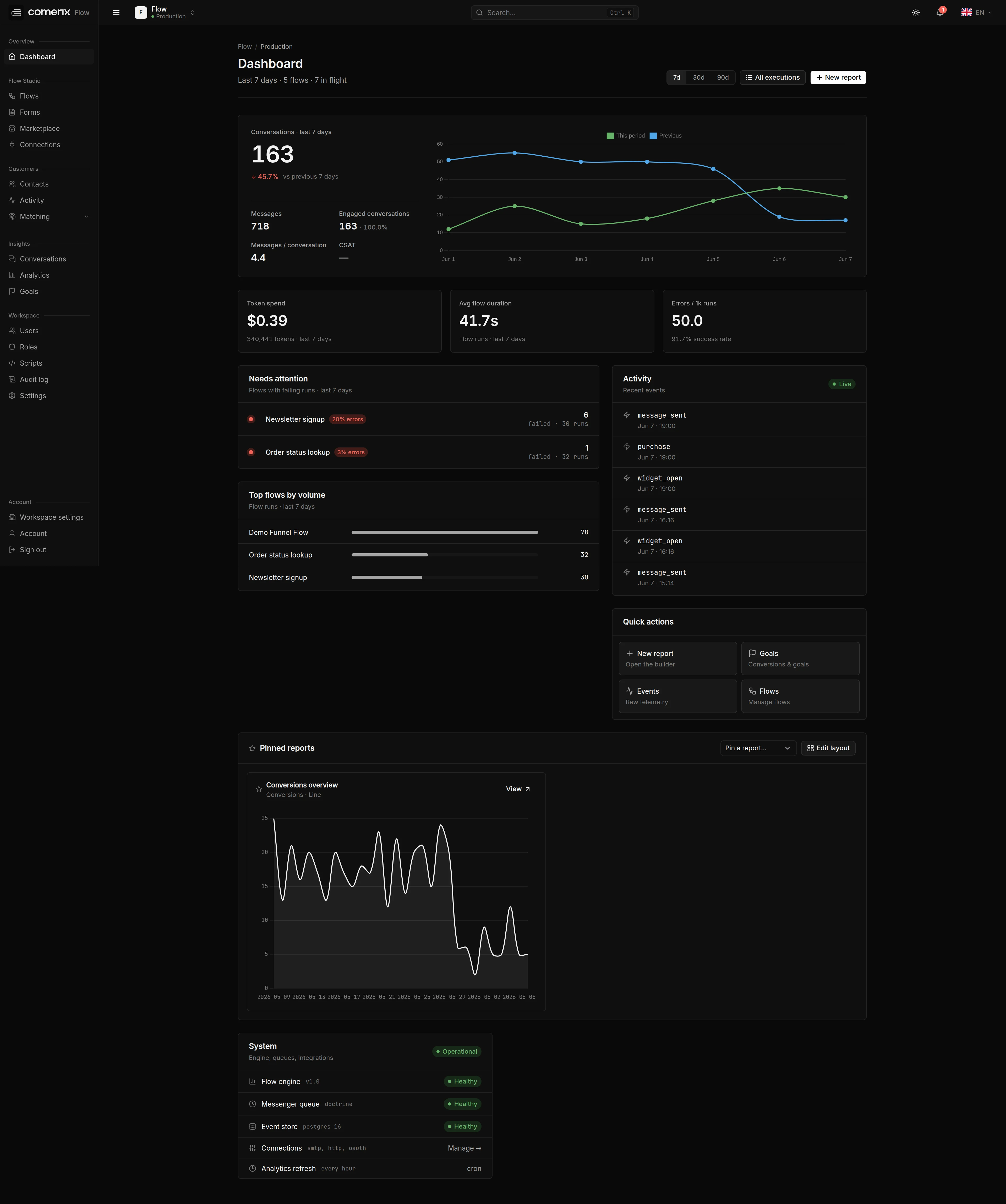
localStorage, so it survives navigation and reloads. Until you pick a theme,
the panel follows your operating-system preference (prefers-color-scheme),
and an inline pre-paint script applies the stored or system theme before the
page draws to avoid a flash of the wrong colour.
Sidebar: pin & collapse
The sidebar can be collapsed to an icon rail — the toggle narrows the first column so only the brand glyph and menu icons remain, freeing horizontal space. The collapsed state is persisted tolocalStorage per browser.
Flow and form editor (canvas) pages auto-collapse the sidebar to the icon
rail for more canvas room. This is a per-page override that does not write to
storage, so your stored preference is left intact and restored when you navigate
away. You can still expand it manually on a canvas page.
Pinned menu (off by default)Frequently used links can be pinned to a Pinned group at the top of
the sidebar. Pinning is a system setting that is off by default; an admin
enables it under Settings → General → Navigation → Pinned
menu (
general/navigation/pinned_menu). When it is on, hover a menu item
and use its Pin to top / Unpin control. Pins are per-user.Workspaces
You work inside one workspace (tenant) at a time and switch between them from the topbar. Most data — flows, connections, history, roles — is workspace-scoped, so what you see depends on the workspace you’re in. See Workspace settings.Dashboard
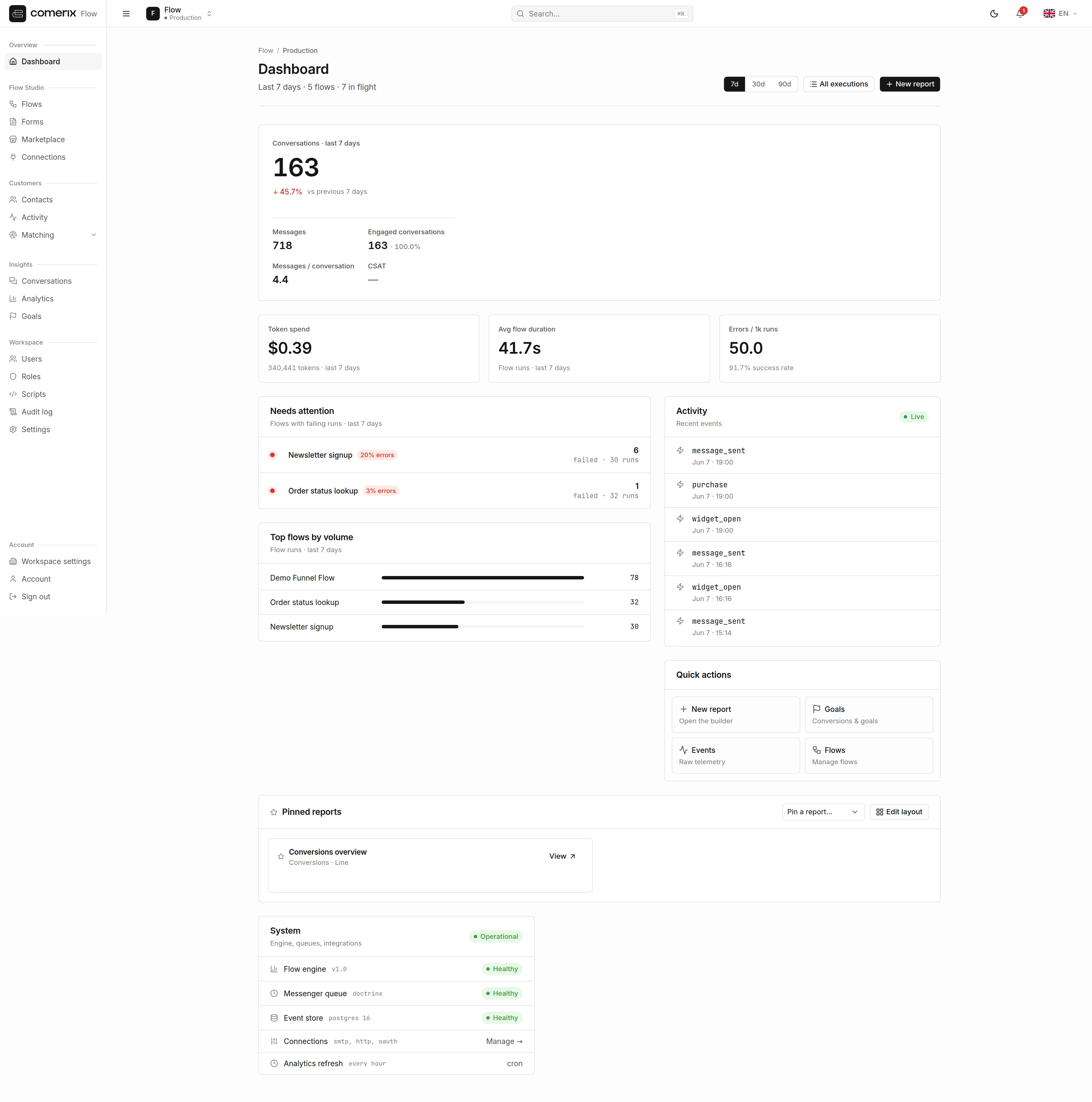
/admin (route admin_dashboard) is the landing page. It shows widgets
contributed by the installed modules:
- A System health panel.
- A Pulse overview (from Insights): a conversations chart with year-over-year comparison, flow-run metrics, flows that need attention, your top flows, a live activity feed, and quick actions.
- A Pinned reports grid — the analytics reports you’ve pinned, each run live. See Analytics Hub → Pin to dashboard.
Navigation map
The sidebar groups every destination into sections, in this order:| Section | Items | What they’re for |
|---|---|---|
| Overview | Dashboard | The landing page with health and Pulse widgets. |
| Flow Studio | Flows, Forms, Marketplace, Connections | Build and publish flows, design forms, install ready-made building blocks, and wire external services. |
| Customers | Contacts, Activity, Matching → Rules, Merge review | Browse resolved contacts, scan the cross-customer activity inbox, and tune identity matching: signal-mapping rules and the merge-review queue. |
| Insights | Conversations (Transcripts), Analytics (Analytics Hub), Goals | Review conversations and runs, build reports, and track goals & conversions. |
| Knowledge | Training base | Register the sources that ground AI answers. |
| Workspace | Users (super-admins), Roles, Scripts, Audit log, Settings | Manage people and access, embed the chat widget, read the audit log, and edit platform-wide configuration. |
| Account | Workspace settings, Your account & security, Sign out | Manage the current workspace and your personal profile. |
The sidebar adapts to youEmpty sections are dropped automatically, and entries appear only when you
hold the gating permission. The Customers section needs
comerix.crm.view;
Users under Workspace is super-admin only; Training base appears
only while the preview is enabled.